Independence Day Photo Editing ChatGPT Prompt Guide
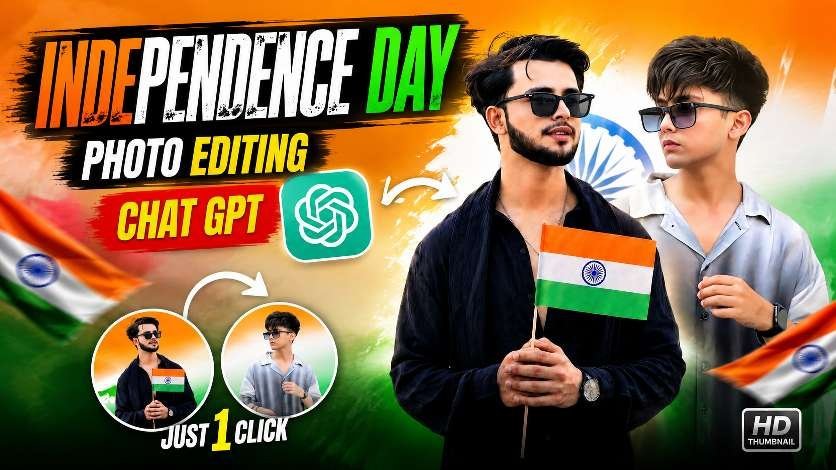
The Independence Day photo editing prompt is a fast way to turn a regular portrait into a patriotic, social-media-ready design. With the right instructions, you can create a clean tricolour edit that looks professional on Instagram, Facebook, WhatsApp, and even YouTube thumbnails.
This guide explains how to use AI photo editing for Independence Day, what makes a strong patriotic composition, and how to get a realistic result without advanced editing skills. If you want a stylish edit with the Indian flag, cinematic lighting, and bold festival text, you are in the right place.
To understand the meaning behind the celebration, you can also explore Independence Day in India. If you plan to create and refine visuals with AI tools, the basics of ChatGPT may also help you work more efficiently.
Independence Day photo editing prompt for patriotic portraits
A strong Independence Day photo editing prompt should clearly describe the mood, colors, background, and final use of the image. The goal is to create a polished portrait that feels festive while still looking natural and believable.
Read Also: Independence Day photo editing prompt: 6 viral ideas
Instead of asking for random effects, focus on details such as tricolour lighting, Indian flag elements, clean framing, and premium-quality output. These small instructions help the AI understand the style you want and reduce the chance of messy results.
- Use a clear front-facing or slightly angled portrait.
- Ask for saffron, white, and green lighting.
- Include blurred flags or a patriotic background for depth.
- Keep the composition balanced and realistic.
- Request vertical social-media sizing for Instagram posts.
Independence Day photo editing prompt style that works best
The best edits usually look simple, bold, and clean. Too many effects can make the portrait look artificial, while a controlled combination of color, light, and text keeps the final image sharp and attractive.
For most users, the ideal result is a patriotic poster style with a cinematic finish. This works especially well when the photo is meant for a profile picture, feed post, or festival greeting image.
| Element | Best practice | Why it helps |
|---|---|---|
| Portrait | Use a clear, high-quality face photo | Improves realism and facial detail |
| Background | Use tricolour themes and Indian flags | Creates an instant Independence Day feel |
| Lighting | Ask for cinematic or dramatic light | Makes the edit look premium |
| Text | Add simple festive wording | Makes the post easy to understand |
| Format | Choose 4:5 for social media | Fits Instagram posts better |
Patriotic poster composition
When you want a poster-like image, think about placement first. The subject should remain clearly visible, while the background carries the theme with flags, color gradients, and subtle motion effects.
Keep the face sharp and let the patriotic elements support the portrait rather than overpower it. This approach creates a more polished Independence Day visual.
Cinematic tricolour lighting
Lighting can completely change the final result. A soft glow in saffron, white, and green gives the image a festive identity without making it too busy.
If the light looks too harsh, the portrait may feel unnatural. A smooth cinematic effect usually works better for a realistic Independence Day edit.
Independence Day photo editing prompt block 1
This first prompt style is useful when you want a strong poster template effect. It is ideal for people who want the background and typography to stay consistent while the person in the photo is swapped in cleanly.
Use this option when your goal is a polished social post with a fixed patriotic design and a clear hero subject.
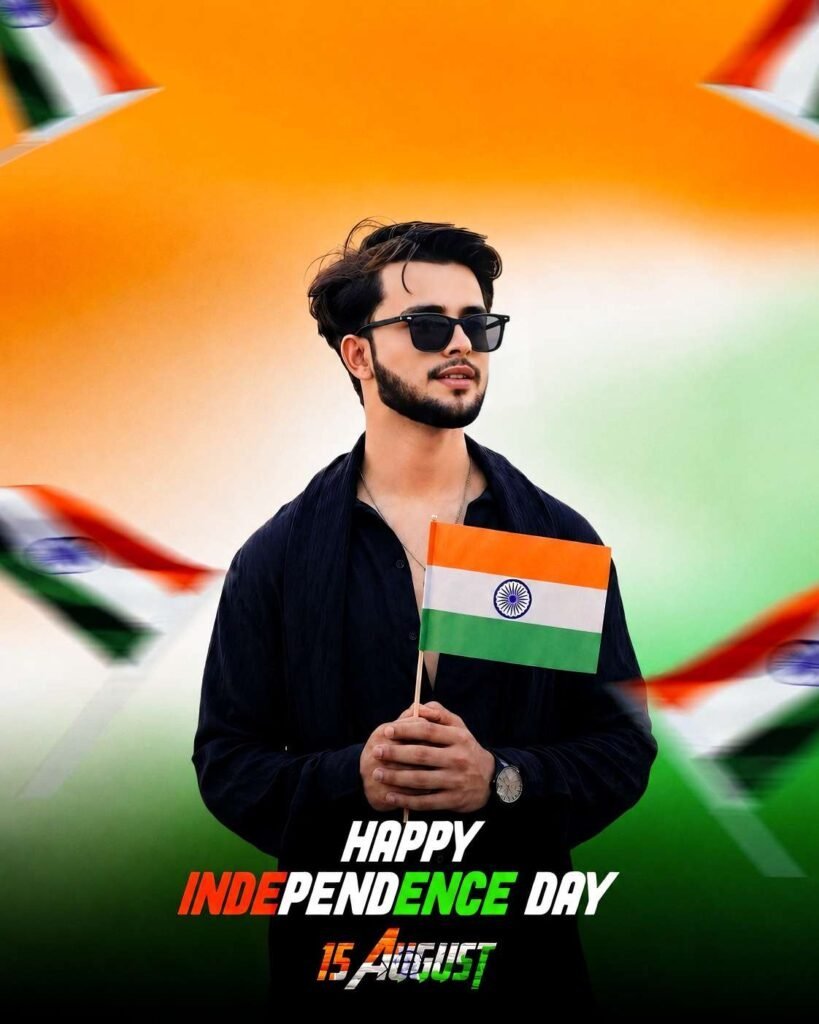
For best results, upload a high-resolution portrait with visible facial features and no heavy blur. The more clearly the face is seen, the more natural the final edit will appear.
Independence Day photo editing prompt block 2
This second prompt style is useful when you want a slightly different layout that keeps the patriotic theme but gives the subject a more integrated look. It is a good choice for portrait-based festival graphics and profile updates.
Because the composition stays balanced, it works well for both male and female photos and can be used across social platforms with minimal adjustments.
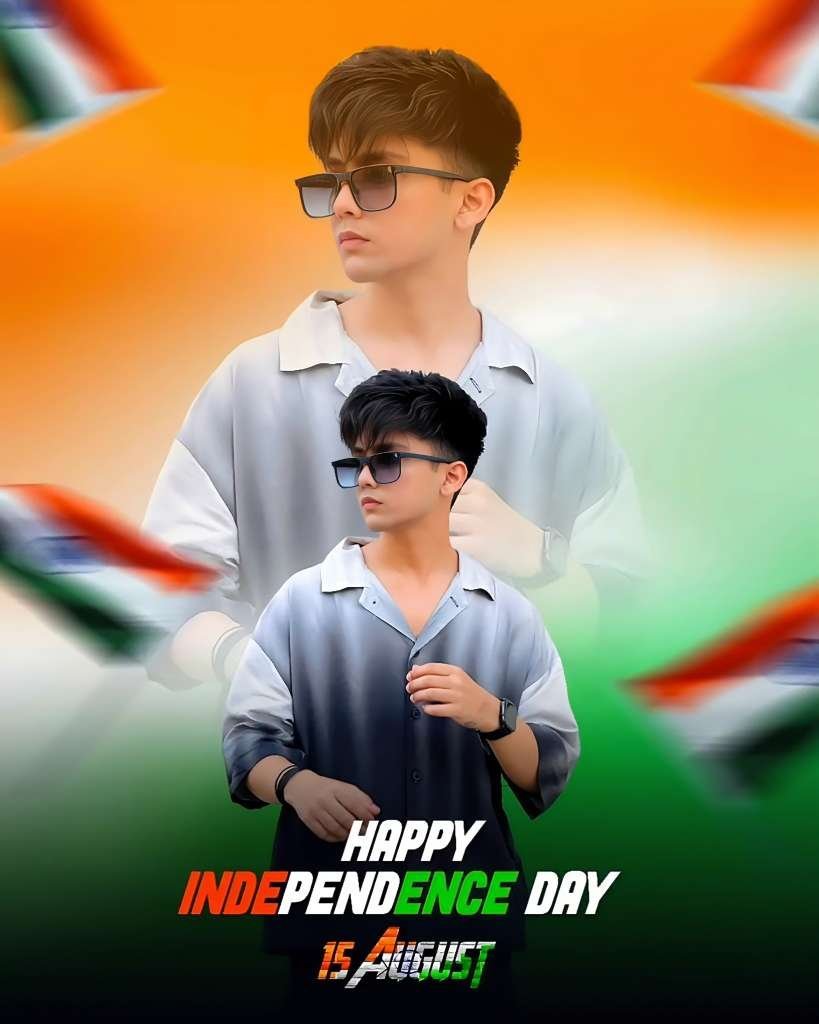
If you want a cleaner result, avoid using low-quality selfies or images with heavy shadows across the face. A bright, well-lit source photo gives the AI more detail to work with.
How to improve your Independence Day photo edit
A good Independence Day photo editing prompt is only part of the process. The source image, text placement, and final export settings also affect the quality of your design.
Here are a few practical tips to make your patriotic edit stand out:
- Choose a portrait with a clear face and natural expression.
- Keep the clothes simple so the tricolour theme stands out.
- Use bold but minimal text like a festival greeting or date.
- Prefer a 4:5 frame for Instagram and a 16:9 frame for thumbnails.
- Export in high resolution so details stay sharp on mobile screens.
It also helps to leave enough breathing room around the subject. When the face, flags, and text are crowded together, the image loses impact quickly.
Where to use an Independence Day photo editing prompt result
The best thing about this type of edit is its flexibility. Once your image is ready, you can use it across many platforms without changing the design too much.
Popular uses include:
- Instagram feed posts
- WhatsApp status updates
- Facebook festive greetings
- YouTube thumbnails for Independence Day content
- Profile pictures for the holiday
If you are posting on social media, remember that a clean and readable design usually performs better than an overloaded graphic. Simple patriotic visuals often feel more premium and more shareable.
Independence Day photo editing prompt tips for realistic results
Realism matters when creating AI-based festival edits. Even though the design is creative, the portrait should still look believable and human.
To achieve that, focus on accurate face shape, natural pose, and matching body proportions. Avoid asking for extreme zoom, exaggerated effects, or heavy distortion, because those choices can break the final image.
A realistic patriotic edit is usually stronger than an overly flashy one. Clean color, balanced light, and a sharp portrait create the most professional result.
Frequently asked questions about Independence Day photo editing prompt
How do I use an Independence Day photo editing prompt?
You start by uploading a clear portrait and then entering a detailed instruction that describes the patriotic style you want. The best prompts mention the tricolour theme, flags, lighting, composition, and final image format.
After that, generate the image and review the result for face accuracy, text clarity, and overall balance.
What photo works best for Independence Day photo editing prompt results?
A front-facing or slightly angled portrait with good lighting usually works best. Images with clear facial detail and minimal background clutter give the AI more room to create a clean patriotic design.
Blurry selfies and low-light photos often produce weaker results, so a sharper source image is always better.
Can I use an Independence Day photo editing prompt for Instagram?
Yes, it is one of the best uses for this kind of edit. A vertical 4:5 format fits Instagram posts well and helps the portrait fill the screen attractively.
You can also use the same image for stories, reels covers, or festival profile updates.
Conclusion
The Independence Day photo editing prompt is a simple but powerful way to create eye-catching patriotic visuals for social media. With the right portrait, clean instructions, and a balanced tricolour design, you can produce a festive edit that looks polished and ready to share.
Try the ideas in this guide, keep your composition clean, and create an Independence Day image that feels bold, modern, and memorable. Start your own patriotic edit today and give your photo a fresh festival look.
Leave a Reply