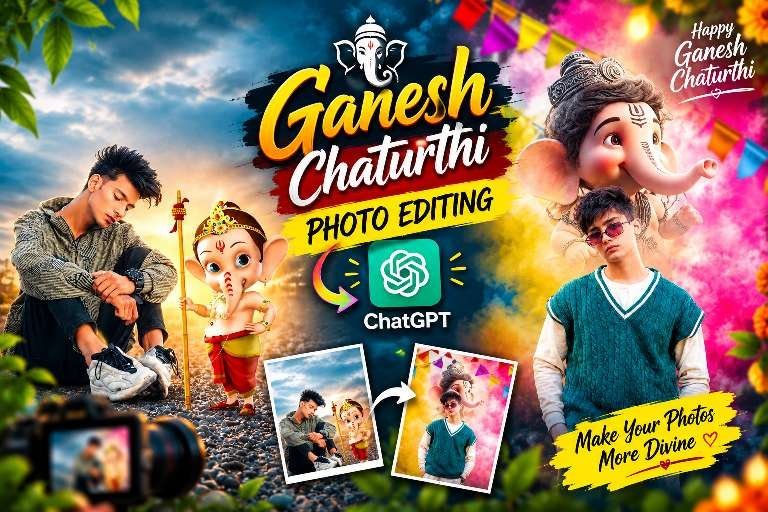
A Ganesh Chaturthi photo editing prompt can turn an ordinary portrait into a warm, devotional festival image without requiring advanced Photoshop skills. With the right reference background, subject photo, and clear instructions, an AI editor can combine both images while preserving the person’s identity and the original celebration design.
This style is especially popular for Instagram posts, Stories, WhatsApp status updates, festive greetings, and profile pictures. The strongest results do not simply add random decorations. They create a believable scene in which the person matches the background’s lighting, scale, color, perspective, and depth.
Ganesh Chaturthi Photo Editing Prompt Basics
The main idea is simple: provide two uploaded images and assign each one a clear role. Image 1 should be the finished festival background, while Image 2 should contain the person who will be placed into that scene. The AI should treat the first image as a locked composition rather than an invitation to redesign it.
This distinction matters because image generators often change small details when an instruction is vague. A deity’s position may shift, existing text may become unreadable, or decorative elements may be replaced. A strong editing instruction repeatedly explains what must remain untouched and what single change is allowed.
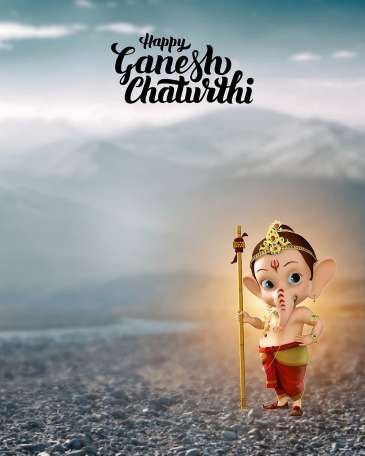
Background image: the complete Ganesh Chaturthi design, including the idol, text, colors, decorations, ground, and lighting.
Subject image: the creator’s own portrait, selfie, half-body shot, or full-body photograph.
Output goal: a natural composite that looks like one authentic photograph.
For cultural context, Ganesh Chaturthi is a major Hindu festival dedicated to Lord Ganesha. Respectful visual treatment is therefore just as important as technical quality when creating a festive edit.
How to Use a Ganesh Festival Photo Edit
Before opening an AI editor, select a background with enough open space for the person. A composition with a clear foreground or side area usually works better than a crowded design. Also choose a subject photo with visible edges around the hair, shoulders, hands, and clothing, because clean separation improves the final cutout.
Upload the empty or prepared Ganesh Chaturthi background first.
Upload the personal portrait as the second image.
Tell the editor which image is locked and which image may be extracted.
Specify that the person’s face, identity, clothing, pose, and accessories must remain faithful to the source.
Request a precise cutout with no halo, leftover background, jagged edge, or sticker-like outline.
Ask the editor to match perspective, brightness, warmth, contrast, focus, and contact shadow.
Review the result at full size before exporting it for social media.
Do not ask the tool to “make it beautiful” without explaining the boundaries. Broad language can encourage unwanted face changes, extra objects, new text, or background regeneration. Specific instructions produce more predictable image compositing.
Ganesh Chaturthi AI Photo Editing Workflow
A successful Ganesh Chaturthi photo editing prompt usually has four layers. First, it identifies the input images. Second, it locks the original festival artwork. Third, it describes the subject extraction process. Finally, it defines how the subject should be integrated into the scene.
The locked-background instruction is particularly useful when the design already contains a Ganesh idol, greeting text, bunting, colored smoke, mountains, temple elements, or a carefully balanced arrangement. The editor should not redraw these features. Only the person should be introduced into the existing scene.
Editing stage
What to protect
What to improve
Background control
Idol, text, decorations, colors, composition
Nothing unless specifically required
Subject extraction
Identity, hair, clothes, hands, accessories
Remove the original background cleanly
Scene placement
Natural proportions and original pose
Scale, position, perspective, and depth
Final polish
Authentic appearance and readable design
Matching light, sharpness, and subtle shadow
When possible, export in a vertical 4:5 format for Instagram feed posts. A 1080 by 1350 pixel canvas gives the portrait enough height while keeping the main subject and Ganesh artwork visible. For Stories or status updates, you may need a separate 9:16 crop, but avoid cutting away important text or the idol.
Locked Background and Natural Subject Integration
This first prompt section is designed for a festival composition where the background must stay exactly as supplied. It emphasizes a precise person cutout, realistic placement, and a larger but balanced subject that remains separate from the central devotional artwork.
Use exactly 2 images: Image 1 = the empty Ganesh Chaturthi master background, Image 2 = the audience member’s own photo. Keep Image 1 completely untouched and unchanged. Do not move, resize, replace, redraw, recreate or modify Ganesh Ji, His staff, the “Happy Ganesh Chaturthi” text, mountains, sky, rocky ground, lighting, colors, composition or any existing background element. Remove 100% of Image 2’s original background and keep only the person with an extremely precise, clean and natural cutout, including individual hair strands, ears, hands, fingers, feet and clothing edges; no leftover background, halo, white/black outline or rough edges. Preserve the person’s exact face, identity, hairstyle, skin tone, facial features, expression, body proportions, clothing, colors, patterns, shoes and every original accessory. Automatically understand whether Image 2 is a selfie, close-up, half-body, cropped, sitting, standing or full-body photo and adapt it intelligently. Keep the person’s natural original pose whenever possible and naturally complete only missing body areas when necessary. Make the person noticeably larger than the previous result, approximately matching the size and visual presence of the person in the provided PicsArt reference, while keeping the person fully inside the available left-side area and maintaining natural proportions. Do not make the person too small. Do not enlarge the person so much that he overlaps, covers or interferes with Ganesh Ji or the “Happy Ganesh Chaturthi” text. Place the person naturally on the rocky ground beside Ganesh Ji, following the exact composition feel of the PicsArt reference. Never move, resize or alter Ganesh Ji or any fixed background element. Match the person’s camera angle, perspective, scale, depth, focus, brightness, contrast, color tone and lighting to Image 1 so he genuinely looks photographed in the same scene. Apply the background’s natural warm light and atmospheric effect subtly and realistically, matching the PicsArt reference. Keep the person sharp and detailed while preserving the original background softness and depth. Add only a very subtle natural contact shadow, exactly like the reference, never excessive. If Image 2 is low-quality, compressed or blurry, naturally improve its clarity and important details without changing the person’s identity or appearance. Preserve natural skin texture and facial details; do not over-smooth the face. Carefully correct obvious AI artifacts such as distorted face, eyes, hands, fingers, feet, clothing, accessories, duplicate body parts or unnatural edges. Do not add any new text, logo, watermark, sticker, decoration, object or person. The final image must look like one authentic photograph matching the provided PicsArt reference, with the person slightly larger and more prominent while everything in Image 1 remains completely unchanged. Final output: sharp, clean, premium-quality 1080×1350 px, 4:5 portrait format.
After generating the result, inspect the hairline, fingers, shoe edges, and contact area near the ground. If the person looks pasted on, request a lighter shadow and better color matching rather than asking the tool to redesign the whole image.
Photorealistic Festival Portrait Composite
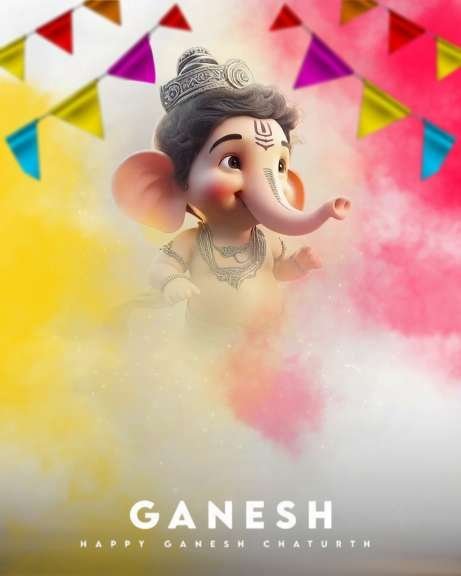
The second prompt section focuses on strict preservation of the master artwork and a photorealistic foreground subject. It is useful when the design includes fixed greeting text, colorful powder or smoke, bunting, and a specific visual relationship between the person and Lord Ganesha.
Use exactly 2 uploaded images. Image 1 is the exact empty/master background and Image 2 is the audience member’s own photo. Image 1 is a strictly locked master background and must remain completely unchanged. Do not regenerate, redraw, recreate, replace, remove, add, move, resize, recolor, retouch, crop, distort, blur, sharpen, or modify ANY existing element of Image 1. Preserve Lord Ganesha exactly as shown in Image 1, including His position, size, appearance, softness, colors, lighting and every visible detail. Preserve the colorful yellow, pink, white and other festive powder/smoke atmosphere, the multicolor triangular bunting flags, the complete background, all existing lighting, colors, textures, composition and depth exactly as supplied. The fixed white “GANESH” text and smaller “HAPPY GANESH CHATURTHI” text at the bottom are also permanent parts of Image 1 and must remain exactly unchanged, clearly visible, readable and in their original position. Nothing from Image 1 may disappear and absolutely nothing new may be added to the background. The ONLY permitted modification is to extract the person from Image 2 and realistically integrate that person into the existing Image 1 scene. Remove 100% of Image 2’s original background with an extremely precise, professional and photorealistic subject cutout. This is one of the highest-priority requirements. Carefully isolate every part of the person, including fine individual hair strands, face edges, ears, neck, shoulders, hands, fingers, clothing edges, sleeves, folds, shoes, feet and accessories. Remove every trace of the original Image 2 background from around and between the subject, including tiny fragments around hair and fingers. There must be absolutely no leftover background, white patches, colored patches, dark patches, rough edges, jagged edges, transparent gaps, fringing, halo, glow or sticker-like outline. Do not artificially smooth away fine hair or clothing details. The final cutout must look like a real camera photograph of the person, not a pasted sticker or AI cutout. Preserve the audience person’s real identity exactly: face shape, eyes, nose, lips, ears, skin tone, hairstyle, hair texture, natural expression and all recognizable facial characteristics must remain faithful to Image 2. Do not change the person into another face, do not beautify unnecessarily and do not create an artificial face. Preserve the person’s original body proportions and natural anatomy. Do not make the person unnecessarily thinner, wider, taller, shorter or otherwise reshape the body. Preserve all original clothing exactly, including colors, patterns, designs, logos, textures, folds, sleeves and other details. Preserve sunglasses, glasses, watches, jewelry and every other accessory exactly as present in Image 2 without missing, duplicating, replacing or distorting them. Preserve the person’s original natural pose. Whether Image 2 shows a standing person, sitting person, selfie, half-body photo, full-body photo, side-angle face or another pose, do not force the person into the reference pose and do not artificially change their natural pose. Instead, intelligently adapt crop, framing, scale, placement, perspective and integration so the person fits the composition naturally. The most important composition requirement is to reproduce the same visual relationship as the supplied PicsArt reference: Lord Ganesha must remain clearly visible, clean and prominent in the upper background, while the audience person appears naturally in the lower foreground beneath Ganesha in a proper half-photo style. If the audience provides a full-body/full-length photo, do NOT simply shrink the entire person to fit. Intelligently smart-crop and reframe the person so the final result has the same prominent half-photo framing and visual presence as the PicsArt reference. If the audience provides a half-body photo, selfie, cropped photo, landscape photo, portrait photo or any other framing, automatically determine the best crop and scale to achieve the same reference-style composition. Protect the face, hair and important details during every crop. The person should be prominent and properly sized like the PicsArt reference, but must never cover, hide, overlap, push behind, distort or visually overpower Lord Ganesha. Lord Ganesha must remain fully visible and unobstructed in His original position, size and appearance. The person must remain below/in front of the intended Ganesha area while maintaining the same natural depth relationship seen in the PicsArt reference. Never make it look as if the person has replaced, covered or pushed Lord Ganesha into the background. Keep the fixed “GANESH” and “HAPPY GANESH CHATURTHI” text clearly visible and in front/foreground exactly as supplied in Image 1; never recreate or rewrite the text and never allow the person to incorrectly cover or distort it. Reproduce the subtle dark black/charcoal atmospheric shadow or gradient visible around the lower area of the PicsArt reference, especially behind and around the “GANESH” text and lower part of the person. Match approximately the same softness, strength, spread and placement seen in the reference. This must be a subtle soft gradient/vignette, NOT a hard black patch, heavy drop shadow or dramatic dark effect. Do not make it darker or stronger than the PicsArt reference. Naturally integrate the person with the existing festive atmosphere of Image 1. Match the PicsArt reference’s realistic yellow, pink, white and colorful environmental lighting and powder/smoke interaction. Allow subtle natural festive color reflections and light from the existing background to appear realistically on the person’s face, hair, skin, shirt/clothing and nearby edges where appropriate, just as in the PicsArt reference. Do not apply a flat color overlay, artificial tint or excessive glow. Preserve the person’s original skin tone and clothing colors while allowing realistic environmental light and reflections from the background. Match brightness, contrast, exposure, color temperature, lighting direction, shadows, depth, focus, camera angle and perspective to the master background so the person looks naturally photographed inside the scene rather than pasted onto it. Keep the person naturally clear while preserving the existing softness of the background. Do not over-sharpen the person and do not add unnecessary blur. Add only a very subtle realistic contact/ground shadow beneath the person when needed for natural grounding, matching the PicsArt reference; never make it heavy, dark or artificial. If Image 2 is low-quality, blurry or dark, improve clarity and exposure only as much as necessary while preserving the person’s real identity, facial details, skin texture, clothing and accessories. If Image 2 is already high quality, do not unnecessarily enhance or alter it. Preserve natural skin texture and avoid plastic-looking skin, excessive smoothing or artificial beauty effects. If any body area is cropped or missing and additional reconstruction is genuinely necessary to achieve the reference-style composition, reconstruct ONLY the minimum required area and make it naturally consistent with the person’s original identity, body proportions, clothing, colors, textures, pose, accessories, perspective and lighting. Do not unnecessarily invent body parts or details. Pay extra attention to complicated Image 2 backgrounds during extraction and make the cutout extremely precise around hair, fingers, clothing and small details. Pay special attention to sunglasses/eyes, hands, fingers, ears, face, hair, shoes/feet, clothing and accessories. Before finalizing, inspect the entire result for obvious AI errors such as distorted face or eyes, malformed hands, extra or missing fingers, strange hair, distorted clothing, duplicated accessories, unnatural anatomy, bad crop, incorrect scale, rough cutout edges, halos, leftover background, unnatural shadows, incorrect perspective or pasted-looking blending, and correct only the obvious mistakes while preserving the original person and the locked Image 1 background. Perform a final reference-based quality check against the supplied PicsArt reference and make sure the final composition has the same overall visual balance: Lord Ganesha clean and clearly visible above, audience person naturally prominent below in the foreground with proper half-photo framing, subtle lower dark shadow around the typography, realistic festive color/light interaction, clean professional cutout and seamless photographic blending. Do not add any extra person, object, sticker, logo, watermark, decoration, text or design. Do not alter any existing background element. Image 1 must remain the exact master background and Image 2 must supply only the audience person. The final result must look like one authentic, realistic, professionally edited camera photograph, with no visible AI-generated artifacts or pasted-photo appearance. Output exactly 1080×1350 pixels in a 4:5 vertical Instagram format, Full HD, sharp, clean, detailed, photorealistic and premium quality.
Use the result as a first draft and check whether the person’s original expression and clothing remain unchanged. If the output alters recognizable features, upload a clearer source portrait and repeat the edit with stronger identity-preservation instructions.
Improving a Ganesh Chaturthi AI Photo Edit
Even a detailed AI photo editing prompt may need one or two revisions. The most common issue is a mismatch between the portrait and the background. A brightly lit selfie placed into a warm, low-contrast scene can look artificial, even when the cutout itself is clean.
Use these practical checks before publishing:
Lighting: the subject should receive light from a similar direction as the background.
Scale: the person should be prominent enough to recognize but never cover the idol or greeting text.
Sharpness: avoid making the person much sharper than nearby foreground objects.
Color: apply only a subtle warm festival tone instead of an extreme orange filter.
Shadow: add a restrained contact shadow where the feet or lower body meet the ground.
Edges: zoom in to check hair strands, fingers, sleeves, shoes, and accessories.
For additional manual cleanup, a background-removal tool such as Adobe Express background removal can help prepare a cleaner subject image before compositing. However, preserve the original portrait whenever possible so the final AI edit remains personal and authentic.
Best Uses for a Ganesh Chaturthi Photo Editing Prompt
A polished Ganesh festival photo edit can support several types of content. You can use it as a personal greeting, a family celebration post, a community event announcement, or a festive cover image. It also works well for creators who want a seasonal visual identity without designing every element from scratch.
Instagram feed portraits and carousel covers
Instagram Story greetings and short video thumbnails
WhatsApp status images and profile pictures
Digital Ganesh Chaturthi invitation artwork
Festival-season YouTube or Facebook thumbnails
Personal greeting cards shared with friends and family
Always review any existing words in the artwork before posting. AI tools can sometimes distort letters, so a design with important festival text should be checked carefully at full resolution. Do not add unnecessary logos, watermarks, stickers, or unrelated objects that weaken the devotional focus.
Ganesh Chaturthi Photo Editing Prompt FAQs
What is the best Ganesh Chaturthi photo editing prompt for beginners? A good beginner prompt clearly labels the two images, locks the festival background, and asks the editor to isolate and place the person naturally. It should also protect identity, clothing, pose, existing text, and the position of Lord Ganesha.
How can I make a Ganesh Chaturthi AI photo edit look realistic? Match the subject’s scale, camera angle, brightness, warmth, sharpness, and perspective to the background. A subtle contact shadow and clean hair edges also help the composite look like a genuine photograph rather than a pasted cutout.
Can I use a selfie for a Ganesh Chaturthi photo editing prompt? Yes. A selfie can work well if the face is clear and the subject has enough visible outline for extraction. The editor should preserve the person’s identity and adapt the framing without forcing the selfie into an unnatural pose.
What size should I export for an Instagram festival portrait? A vertical 4:5 canvas at 1080 by 1350 pixels is a strong choice for an Instagram feed post. Keep the idol, subject, and any greeting text inside the safe visible area so the platform’s crop does not remove important details.
Final Tips for Your Ganesh Chaturthi Photo Edit
The best results come from treating AI as a careful image-compositing assistant, not as a tool that should freely redesign the entire artwork. Use a clean source portrait, a well-planned background, and detailed instructions about what may and may not change.
A thoughtful Ganesh Chaturthi photo editing prompt can produce a festive portrait that feels personal, balanced, and ready to share. Try the workflow with your own images, inspect the small details, and refine the result until the person and celebration feel like part of the same scene.
Leave a Reply